Constellate: the user guide
Every control, what it does, and why it is there. Written for the current version of Constellate. It copies by default, and it sets duplicates and broken photos aside instead of deleting them. If a photo ends up somewhere you did not expect, there is an Undo for that.
Don't have Constellate yet? Get it from the Microsoft Store.
Want to know what SureSort does? Jump to What to Sort.
Last updated 26 October 2026
Contents
Before You Start!
Constellate is provided as is. We have tested it hard, on messy libraries, broken files, awkward names and folders that fight back, and we do our best. But computers will computer: drives fail, cables get knocked out, Windows updates at the worst possible moment, and no software can promise otherwise.
So please keep a backup of your photos before a big sort. It is the one piece of advice we would give about any tool that touches your files, ours included. We cannot accept liability for data loss, and we would much rather you never needed to find that out.
What we can tell you is how we have built it to behave.
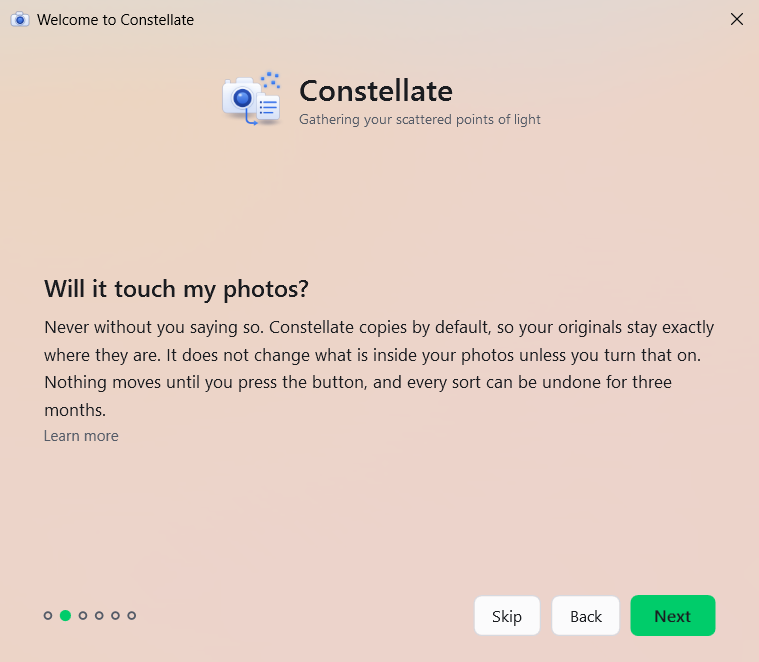
- Copy is the default, so your originals stay exactly where they are.
- After every run, Constellate checks each photo it placed, one by one, and tells you the number, like "412 of 412 arrived".
- A Move only takes an original out of your photos folder after its new copy has been checked.
- Undo last sort puts a sort back, newest first, for a full three months.
- A photo it is not sure about waits where you can see it: in your review folder (Please Check Me, or NeedsReview in Pro), or, under SureSort, in your own folder, untouched.
A normal sort only copies or moves your photos. It does not change what is inside them. A
few jobs do write into a photo, and each one is off until you ask for it: Metadata repair,
repairing Live Photo identifiers, writing ratings, keywords and places into photos, and
correcting one photo's date or camera on the Needs review page. All four are Pro. Before any
of them edits a photo, Constellate puts an untouched copy in a folder called
Constellate backups, inside your collection, and Undo puts it back.
Writing ratings and keywords never writes into a RAW file: its .xmp stays beside it.
Metadata repair changes a RAW file only if you tick Include RAW files.
The Three Views
The switch at the top right changes how much of the app you see and how many choices you get. The same sorting engine runs underneath all three.
- Simple: two questions and one button. Where are the photos, where should they go, Sort. Everything else is decided for you, sensibly. Simple always copies, so your originals stay where they are.
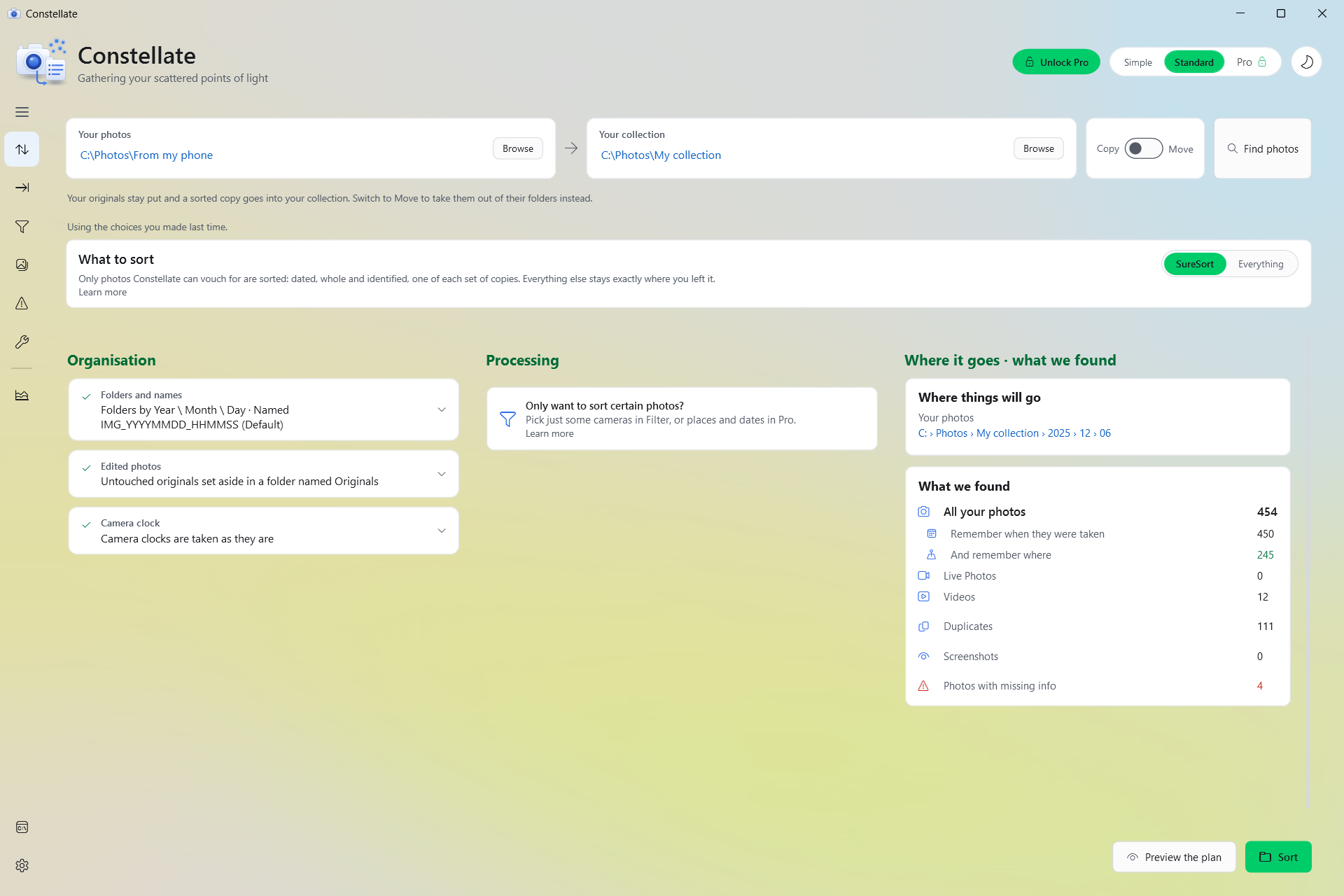
- Standard: the everyday view. Your options written as plain sentences, with the numbers on the right.
- Pro: every dial on one screen. Templates, filters, repair, the lot. It comes with the Pro unlock.
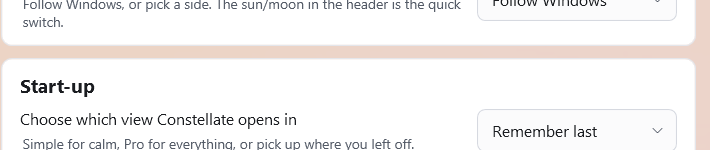
Switching never loses a choice. If you set something in Pro and drop to Standard, Standard files with its own starting values for the things only Pro shows (separate videos, for example), so what you see on screen is what it does. Your Pro choices are still there when you go back. You can also pick which view Constellate opens in, on the Settings page.
While a sort, a preview, an undo or a repair is running, the switch waits. Point at it and it says You can change the view when this finishes.
The Top Bar
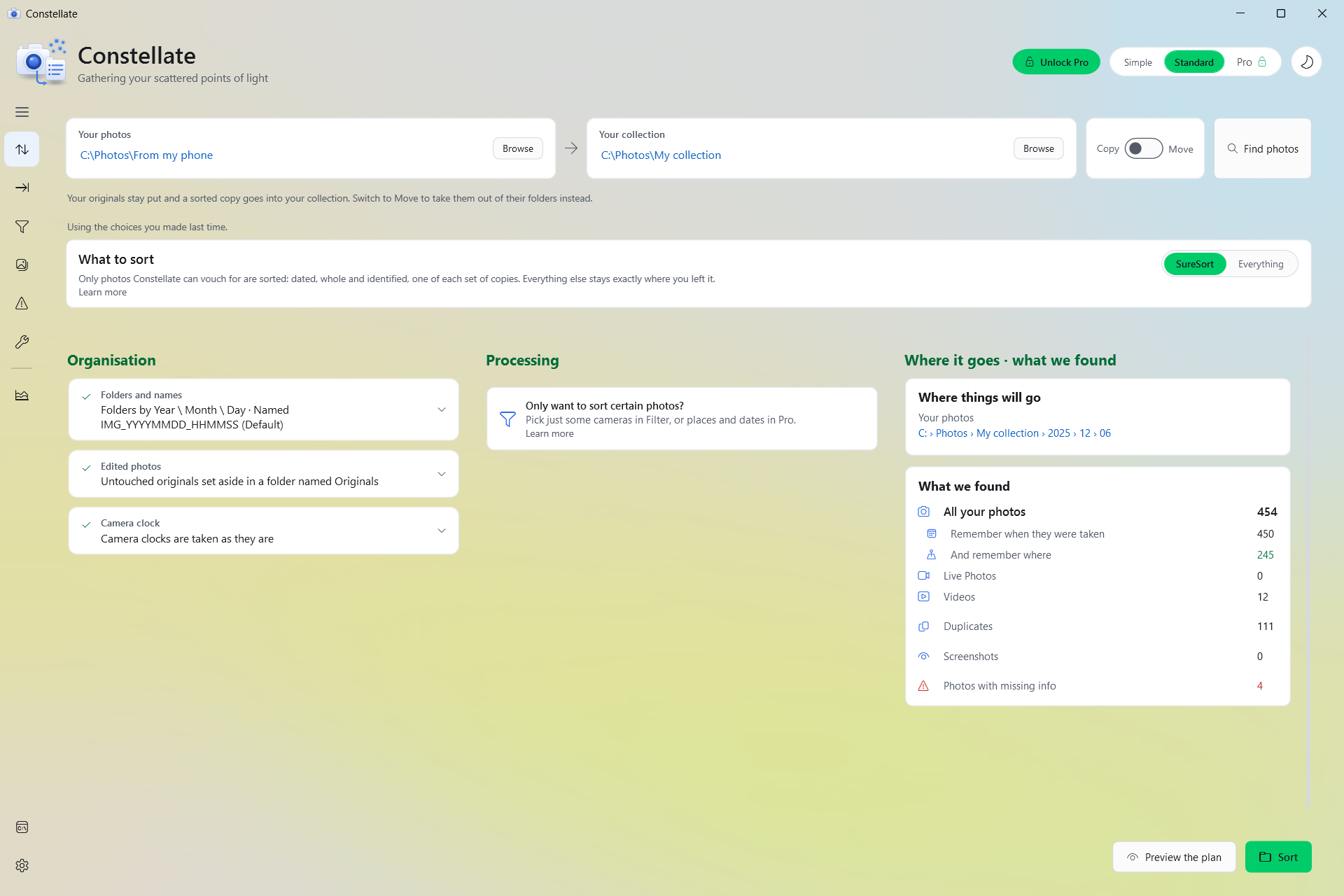
- Your photos
- The folder to read. Constellate looks inside every folder underneath it. It is only ever read. Nothing in here changes unless you choose Move. It has to be a folder, not a single file. Constellate will not read your whole Windows drive, your whole user folder, the AppData folder, a Windows system folder or an iCloud Photos library, and it tells you why. Any other drive, such as an external one, is fine.
- Your collection
- Where the sorted photos go. It can be an empty folder, or a collection you already have. Constellate will not use a whole drive, your whole user folder, the AppData folder, a Windows system folder, or a folder Windows will not let it save in. When you start a sort it makes a small test folder and file in your collection folder and removes them again, to check it can write there. Your collection can sit inside your photos folder (like Pictures\Sorted), but your photos folder cannot sit inside your collection.
- Find photos
- Reads the library and tells you what is in it. It moves nothing. You can also press Alt+F. While Constellate takes its first look, the card at the foot of the window has a link to this guide.

Copy or Move
Copy (the default) leaves your originals exactly where they are and builds a second, tidy set. It needs room for that second set. Move takes each photo out of your photos folder once its new copy has been checked, and does not need the extra room. If you are unsure, use Copy.
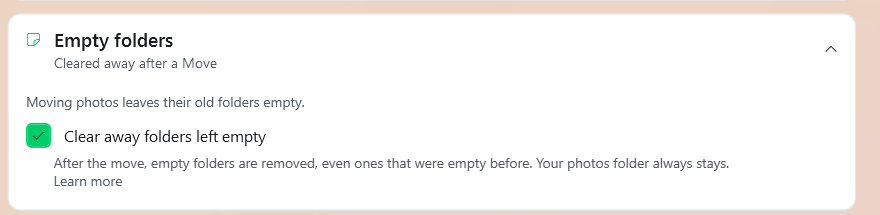
After a Move, Constellate clears away folders it left empty. You can switch that off under Empty folders. A read-only original stays where it is, even under Move, so you end up with both copies. The Import page and Simple always copy.
If your photos folder syncs to the cloud, like OneDrive, and your collection is outside that sync, the Move switch disappears and Constellate copies. Moving the photos out would also delete them from the cloud and from your other devices.

What to Sort
Two ways to sort. The lit word is the one you are using. Rest the pointer on the switch for a two-line reminder of the difference.
- SureSort
- Files only the photographs it can vouch for: dated by the camera itself, whole and identified. If a photo has no capture date from the camera, SureSort will not guess one from the file name or the file's age. It leaves that photo alone. Where you have the same photo more than once, SureSort files one of the set and leaves the spares where they are. Everything it does not file stays exactly where you left it, untouched.
- A second sort does not file again a photo Constellate already filed from the same place, while that photo is unchanged and its copy is still in your collection. With Only add what's new or Number them in order on (both Pro), it also recognises an exact copy of a photo already anywhere in your collection. Without them, a copy it did not file itself, such as the same photo in another folder, could be filed as a spare. The done card tells you how many photos were held back, and says whether SureSort or your filter held them.
- Everything
- Nothing is held back. You decide what happens to duplicates, broken photos and photos with nothing to go on, using the What we found card.
SureSort sets screenshots and chat app downloads aside with everything else, so those two options do not appear while it is on. Separate videos, Keep RAW+JPEG together and holiday folders still apply if you switch them on.

Organisation
Each card below shows, while it is closed, just the choice it holds, like Year \ Month \ Day · IMG_YYYYMMDD_HHMMSS or Originals set aside. Open it to read the whole sentence and change it. The line above the cards, The cards below are set the way you left them last time., means exactly that: Constellate remembers your choices between visits.
Folder Layouts
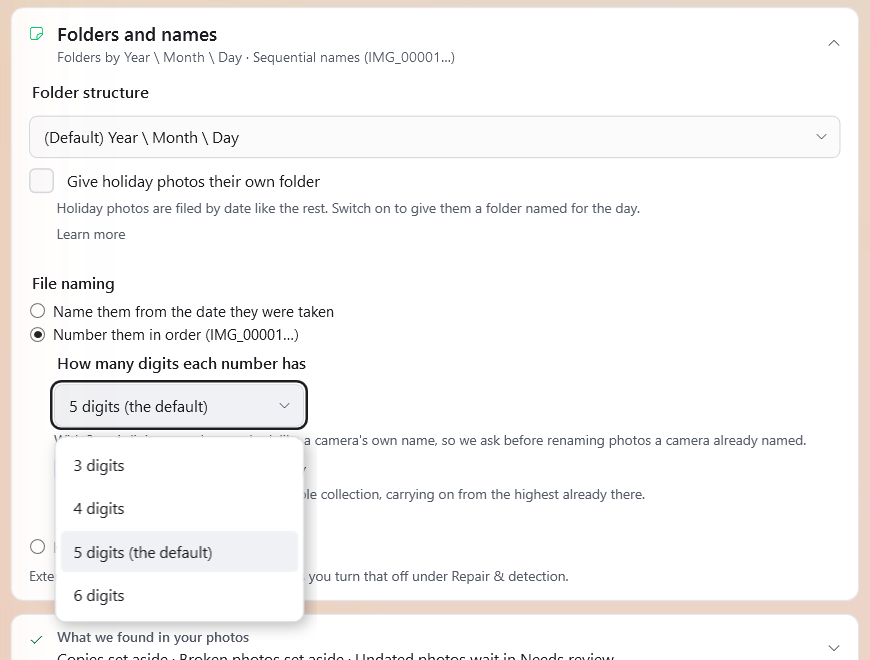
Folder structure is how your collection is split into folders. In Standard and Pro the default is Year \ Month \ Day with plain numbers, like 2024 \ 06 \ 15. Simple spells the names out, like 2023 \ 01 - January \ 15 - Thursday, so you know what you are getting.
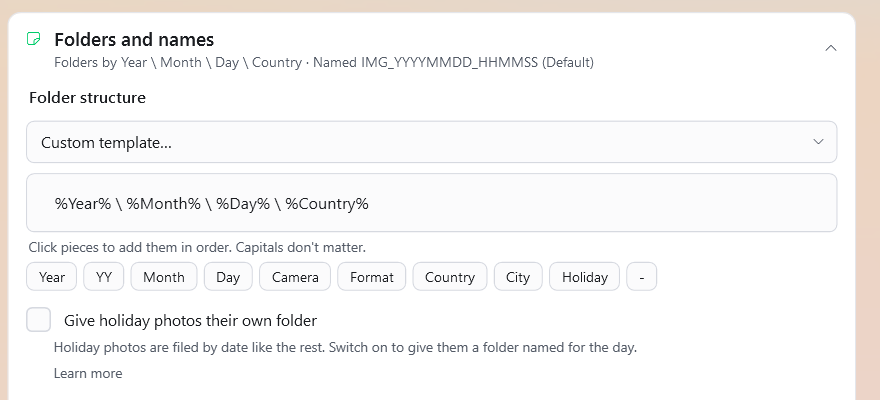
Three layouts are free: Year \ Month \ Day, Camera \ Year \ Month \ Day and Format \ Year \ Month \ Day. Pro adds shallower versions of each (stopping at the month), the Memories (year \ album) layout (see Albums), and a custom layout you build by clicking pieces in order: Year, YY, Month, Day, Camera, Format, Country, City and Holiday, with your own separators between them.
Country, City and Holiday need the photo to know where it was taken. A photo with no place goes into a folder called NoLocation (for Country) or UnknownCity (for City), and Holiday adds nothing for it.
Holiday Folders
In Standard or Pro, switch on Give holiday photos their own folder and a photo taken on a public holiday gets one extra folder named for the day, like Good Friday. It goes inside the deepest folder your layout makes, so with Year \ Month \ Day it sits inside the day (2019 \ 04 \ 19 \ Good Friday) and with Year \ Month it sits inside the month (2019 \ 04 \ Good Friday). If no folder above shows the year, such as a Camera-only layout, the year goes on the holiday folder itself ("Christmas Day 2022") so two years never share one. With event folders on, the holiday folder sits inside the event folder.
It needs to know where the photo was taken, because the same date is a holiday in some countries and an ordinary day in others. A photo with no place is filed as before. Only national holidays are named, not state or regional days, and the names are in English. We carry the holidays of 22 countries: Argentina, Australia, Brazil, Canada, Chile, China, Colombia, France, Germany, India, Ireland, Italy, Jamaica, Japan, Mexico, the Netherlands, New Zealand, Singapore, South Africa, Spain, the United Kingdom and the United States. A photo from anywhere else is filed exactly as before. With the Memories layout there are no holiday folders; holiday photos go into their album like the rest.
Event Folders
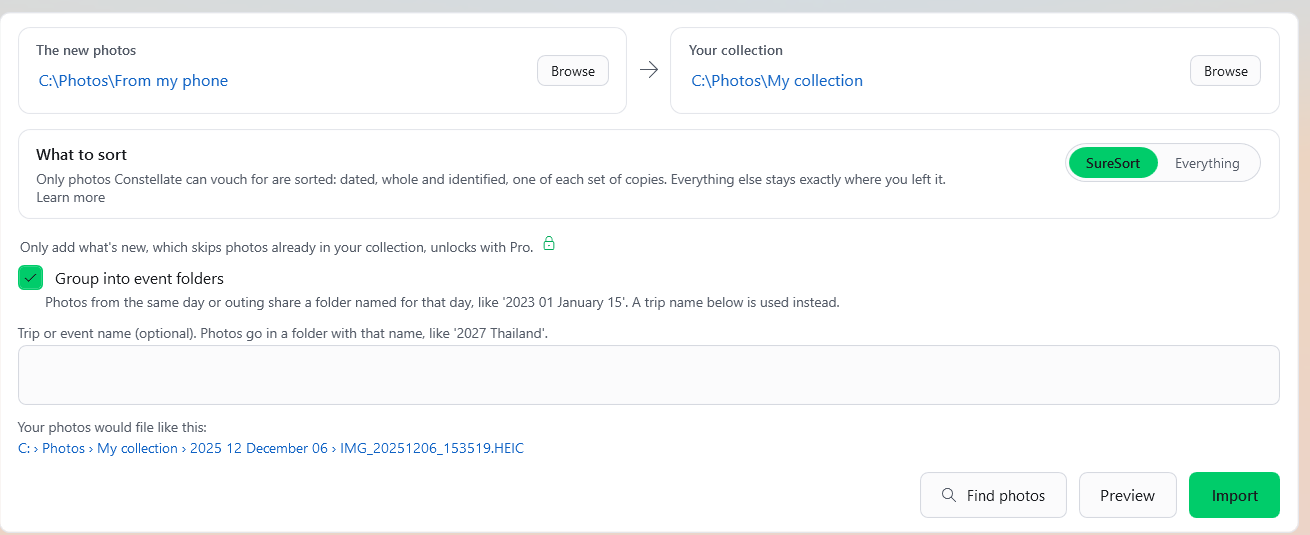
On the Import page, Group into event folders groups photos from the same outing into one folder, named for the day it started, like 2023 01 January 15. A new event starts when more than six hours pass between two shots. Two outings on the same day share that day's folder, and a shoot that runs past midnight without a six-hour gap stays in the first day's folder.
If you type a trip or event name below the switch, that name is used instead of the day, like 2027 Thailand. It is one folder, named for the year the trip starts, so photos from 28 December 2025 to 5 January 2026 all go in 2025 Thailand. Event folders need each photo's capture time. Live Photos and RAW+JPEG pairs go into their event like the rest. Switch it off and photos go back to the layout you chose.
Albums
The Memories (year \ album) layout (Pro) gives each year a folder with an album inside for each month or trip, like 2024 \ 03 March - Wellington trip. A year with only a few photos (under about sixty) holds them flat, with no albums.
To tell a trip from everyday life, Constellate needs a home. It decides that a place is home when photos from it were taken on at least 30 different days, over at least 60 days. A run of three or more photos taken more than 100 km from home becomes a trip album. Once a home is known, a month album reads like "06 June at home". With too little to go on, albums are named by month alone.
The first album sort into a collection saves its home, and later sorts reuse it. Until one is saved, each album sort works it out from its own photos. Settings shows the saved home and has a Forget this home button, and the next album sort works it out again. If you undo the sort that saved the home, the home goes with it.
File Names
One choice, three ways.
- Name them from the date they were taken. The default format is like IMG_20240615_180000, and that one is free. The other formats, and a custom one built from pieces (Year, YY, Month, Day, Time, Camera, Format), are Pro.
- Number them in order (Pro). Oldest photo first. In Standard the numbers have 5 digits, like IMG_00001. In Pro you pick 3 to 6.
- Keep the names they already have, for people whose file names are the information.
In Simple and Standard the ending is corrected to match what the file really is. Pro can switch that off. (See Repair & detection.)
Numbering carries on from the highest number already in the collection, so photos you import later get later numbers, even if they were taken earlier. By default one run of numbers covers the whole collection. Number each folder separately (Pro) starts again in every folder, so a number tells you where a photo sits in its own folder. A folder that already holds numbered photos carries on from its highest one. With 3 or 4 digits a number can look like a camera's own name, so Constellate asks before renaming photos a camera already named, and shows you the new names first.
What We Found
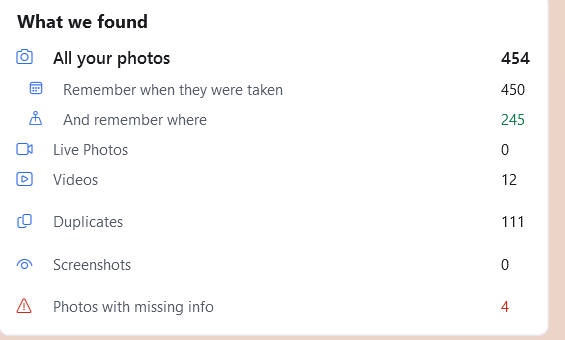
This card only shows what your library actually contains. No Live Photos, no Live Photo options. It appears after a Find.
- Broken photos
- A photo whose picture stops partway down, usually from an interrupted download or copy, is set aside in a folder called Incomplete pictures. It is never repaired and never deleted. If you switch Set broken photos aside off, it is filed like any other, and Constellate still counts it and says so. If one half of a Live Photo is broken, the whole pair is set aside together, unless you turn on Split a broken pair (Pro), which sets aside only the broken half.
- Photos with no date
- They wait in your review folder (see Needs review). In Everything mode, Pro can switch on Undated photos: use the file date instead, and they are filed by the day the file was last changed. That is often not the day the photo was taken, so off is the careful choice. SureSort ignores this switch.
- Files we could not identify
- They wait in the review folder too, in a subfolder called Unidentified, under their own names.
- Duplicates and Live Photos
- See Duplicates and Live Photos.
Duplicates
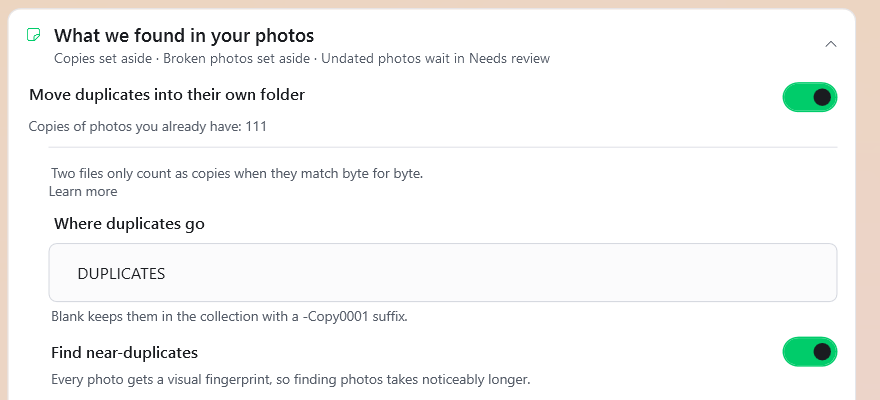
Two files count as the same photo only when their bytes match exactly. Constellate compares the size first, then a fast check, then a full check to confirm. One of each set is filed and the spares go to a DUPLICATES folder (Pro can rename it), or, under SureSort, stay where they are. Nothing is deleted. Under SureSort the duplicates switch is locked on, because it needs to know the sets to file one of each.
If you switch Move duplicates into their own folder off, every copy is filed, with a number added to the name (like IMG_1000-Copy0001) so none overwrites another.
Near-duplicates (Pro) goes further. Find near-duplicates looks for photos that look alike, such as burst shots or a photo saved again. A look-alike is only set aside when it was taken the same day or with the same camera as the one kept. The largest file is the one kept, and the rest go to a NearDuplicates folder. Nothing is deleted. Every photo gets a visual fingerprint, so finding photos takes noticeably longer. Photos are compared by eye, but videos are not: two videos are only matched when they are identical.
Live Photos
A Live Photo is really two files, a picture and a short video. Constellate keeps them together under one name. By default the pair files side by side with your other photos. Switch off File them with your other photos and pairs get their own Live Photo folder instead.
Pro adds more. You can name that folder. Separate orphaned Live Photos sends a Live Photo video that has no matching picture to its own Orphaned Live Photos folder. And, with File them with your other photos switched off, Repair identifiers during sort writes a matching identifier into each pair in the Live Photo folder, so the picture and its video are marked as one pair. That last one writes into the sorted files. Pairs that are already right are skipped, and an untouched copy goes into Constellate backups first.
Edited Photos
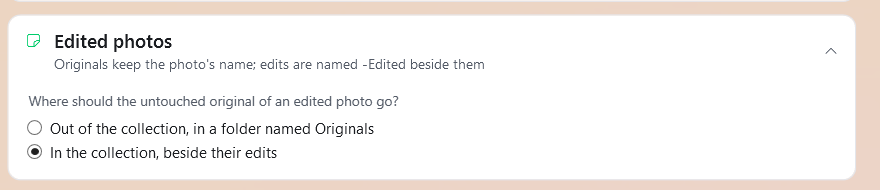
For libraries with Apple edits. Either the untouched original is set aside in a folder named Originals and only the edit shows in your collection, or, with the choice to keep them in the collection (Pro), the pair stays together and the edit is named -Edited beside its original. Simple leaves edits beside their photo.
Camera Clock
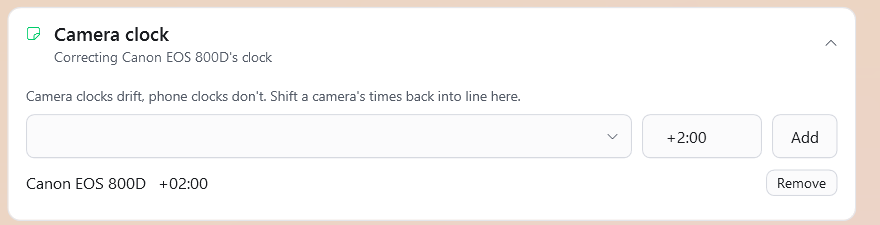
Camera clocks drift, phone clocks do not. Pick the camera from the list of ones Constellate found, type how far off it is, and press Add. Only that camera's photos shift. Type +2:00 for a camera running two hours behind, or -1:30 for one running ahead, up to 72 hours either way. The photos are then filed and named by the corrected time, and Filter and Insights follow it too.
If the name you type is not a camera in these photos, nothing is corrected and Constellate says so, so you can pick one from the list. To undo a shift, press Remove beside it.
Empty Folders
This only happens after a Move, so the card only shows when you are moving. When it is on, every folder left with nothing in it is removed, including ones that were already empty before the sort. A folder holding nothing but a Windows or Mac thumbnail file (Thumbs.db or .DS_Store) counts as empty, and those two files go with it. They are the only files removed this way. A folder holding anything else is left alone. The folder you pointed Constellate at always stays, and nothing inside an AppData folder is touched. Switch it off and nothing is removed.
Processing
Organisation Rules
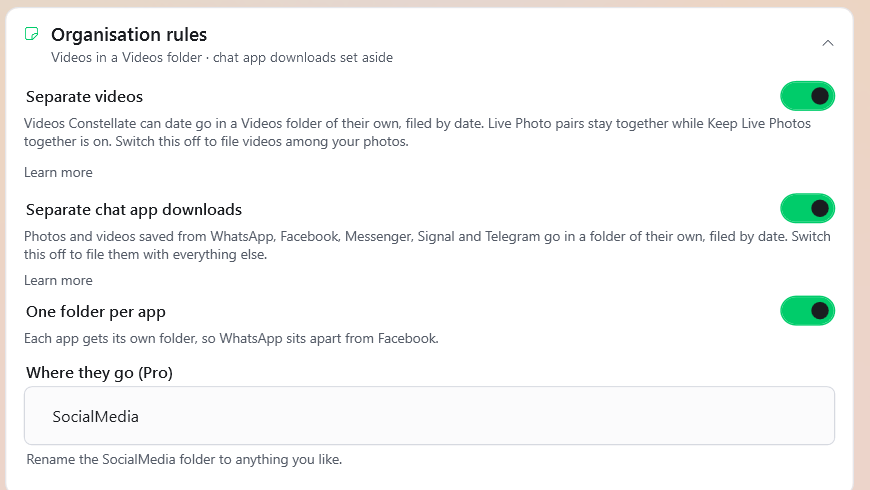
Four switches that set some photos aside in their own folders. In Pro you control each one. In Standard the starting choices apply: screenshots and chat app downloads each get a folder, and videos are filed with your photos.
- Separate videos
- Videos Constellate can date go in a Videos folder of their own, with the same date folders inside. Live Photo pairs stay together while keeping them together is on.
- Separate screenshots
- Screenshots Constellate recognises go in a Screenshots folder. It will not catch every one.
- Separate chat app downloads
- Photos and videos saved from WhatsApp, Facebook, Messenger, Signal and Telegram go in a SocialMedia folder (Pro can rename it), filed by date. Constellate spots them by how each app names its files, so a file you renamed is not caught. One folder per app gives each app its own.
- Keep RAW+JPEG together
- A RAW and its JPEG go in one RAW+JPEG folder, by camera and date, outside your usual layout. The switch only appears when your layout files by format, and it is not used while event folders are on.
Under SureSort the screenshots and chat app switches disappear. Separate videos and Keep RAW+JPEG together still show and still make their folders.
Repair & Detection
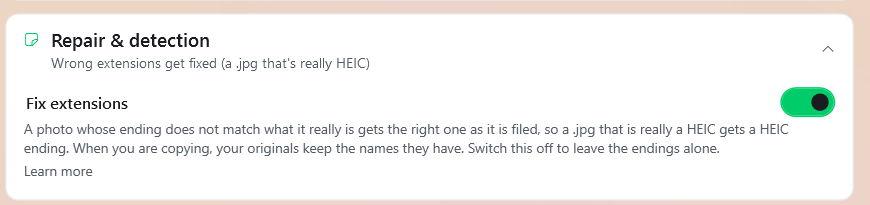
Fix extensions checks what a file really is, not what it is called. A
.jpg that is really a HEIC becomes .HEIC as it is filed. The photo
itself is not changed, only the ending on its name. When you are copying, your originals keep
the names they have. Simple and Standard always do this, so a JPEG called party.mp3
is filed as party.JPG. An ending that is already right only changes to capitals,
so holiday.jpeg becomes holiday.JPEG. In Pro you can switch the
correcting off, and a wrong ending is then left as it is. Undo puts the old name back.
Import & Compatibility
- Google Photos exports
- Constellate notices a Google Photos export by itself and uses the dates and places Google saved in the file beside each photo. It writes nothing into your photos. On a very large folder it may stop looking for Google files part way, and it says so in the log. If the dates then look wrong, tell us.
- Save each photo's place beside it (Pro)
- A photo that recorded where it was taken gets a small file beside it with its country and city, for apps like Lightroom. A photo with no location gets none.
- Write ratings, keywords and places into the photos (Pro)
-
This one edits the filed photo. It only appears after a Find shows that your photos come
with
.xmpor.aaefiles. Constellate asks first. When you copy, your originals are left alone; when you move, the filed photo is your original. RAW files are never written into: their.xmpstays beside them. An untouched copy of each edited photo goes into Constellate backups. In a Move, the sidecar file it used is set aside in a RemovedSidecars folder rather than deleted.
Scanning
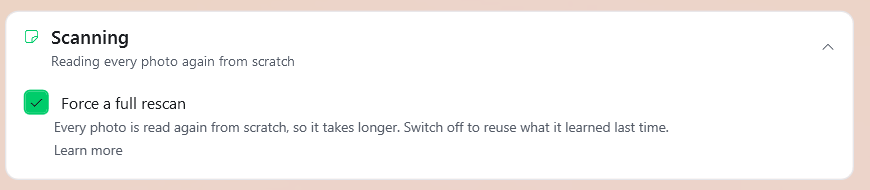
Constellate remembers what it read about each photo last time, so a later Find only reads new or changed files. It still looks through the whole folder every time. Force a full rescan ignores that memory and reads every photo again, which takes longer. Use it if dates look stale.
The Side Pages
Sort is the main screen described above. The rest each have a section below: Import, Filter, Review (where your photos will go), Needs review, Metadata repair, Insights and Settings. Logs shows a plain record of what Constellate did.
Import
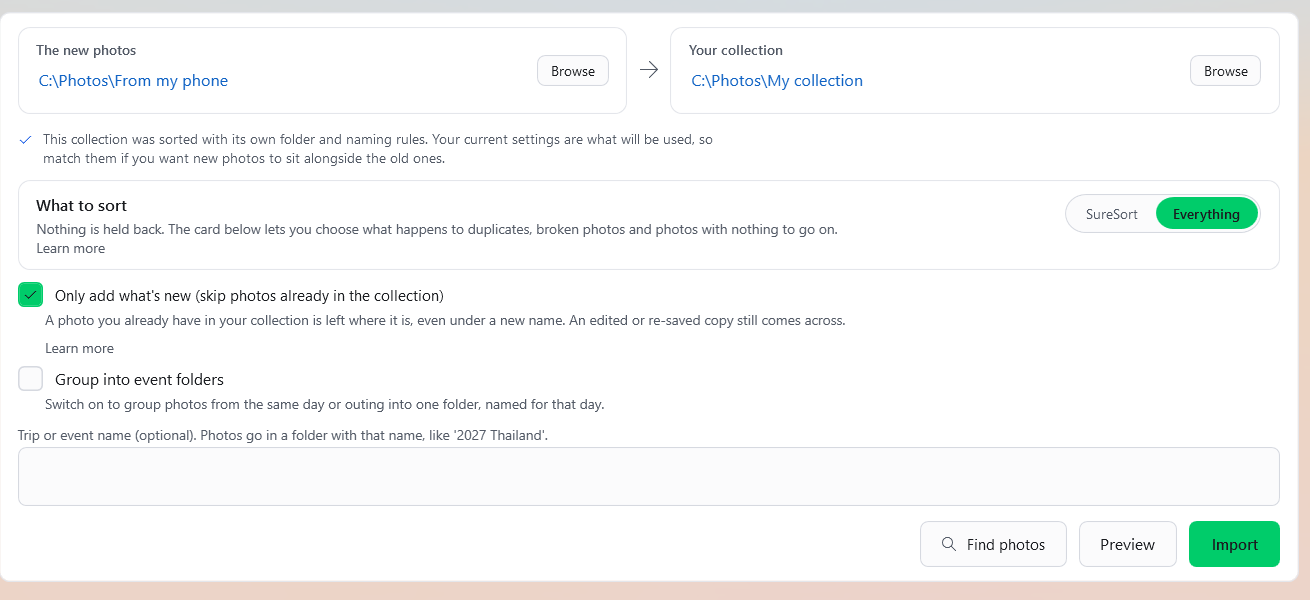
For new photos from a card, phone or trip, into a collection you have already sorted. They are filed by the settings on screen now, not by the rules the collection was first sorted with. If the collection was sorted another way, the page shows a note saying so, and suggests you match your settings if you want the new photos to sit beside the old ones.
Import always copies. Only add what's new (Pro) skips a photo that is already anywhere in your collection, byte for byte, whatever it is called. An edited, resized or re-saved version counts as new and comes across. With it off, a photo is skipped when Constellate already filed that very file and its copy is still there, or when the same photo is already where it would go (or, with Number them in order on, anywhere in the collection).
Press Find photos again after you add photos, because Import plans from the last look. Without that, it can say there is nothing new when there is.
Filter
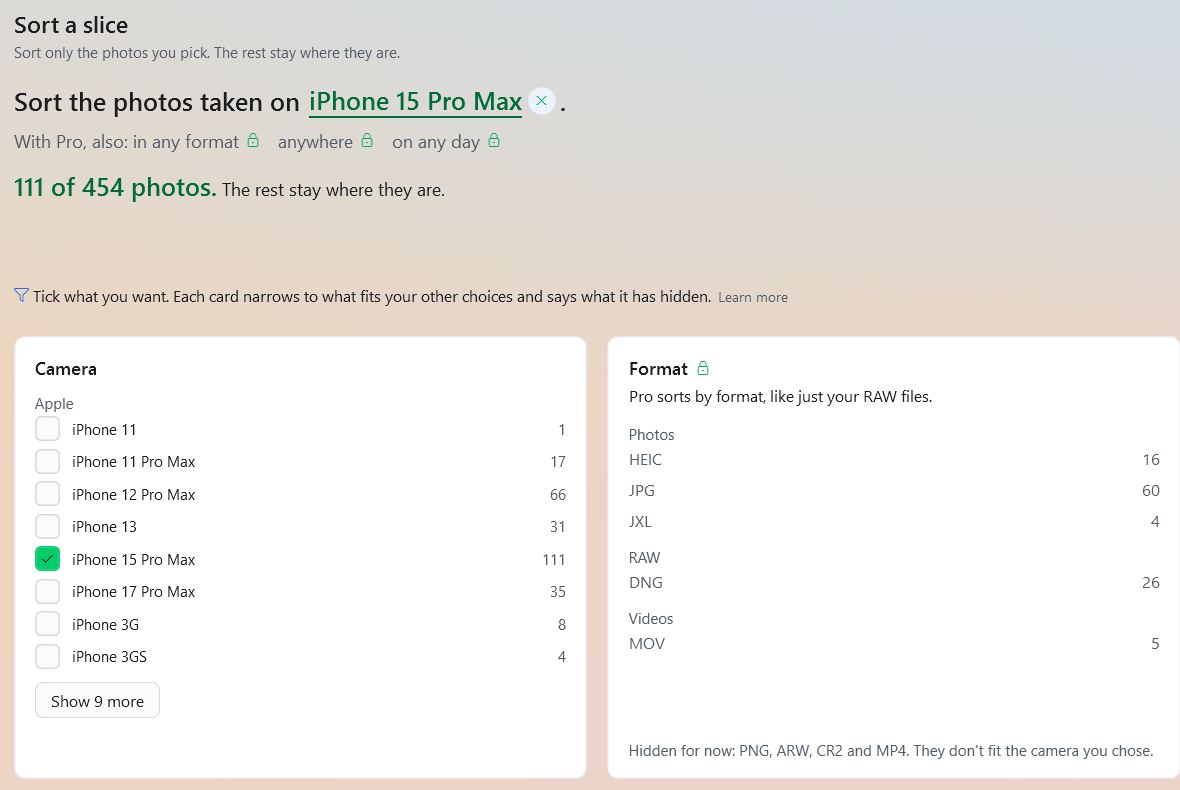
Sort only some of your photos. The ones you do not pick stay where they are. Picking cameras is free. Picking formats, places or dates is Pro.
Find your photos first, so the page can list what is in them. A live count then shows how many photos match your picks, and the Sort button files only those.
Some switches rest for a slice, and the page says so. A format filter cannot keep Live Photo pairs whole, and a camera filter can split a RAW+JPEG pair, so those are off for that sort.
The Preview
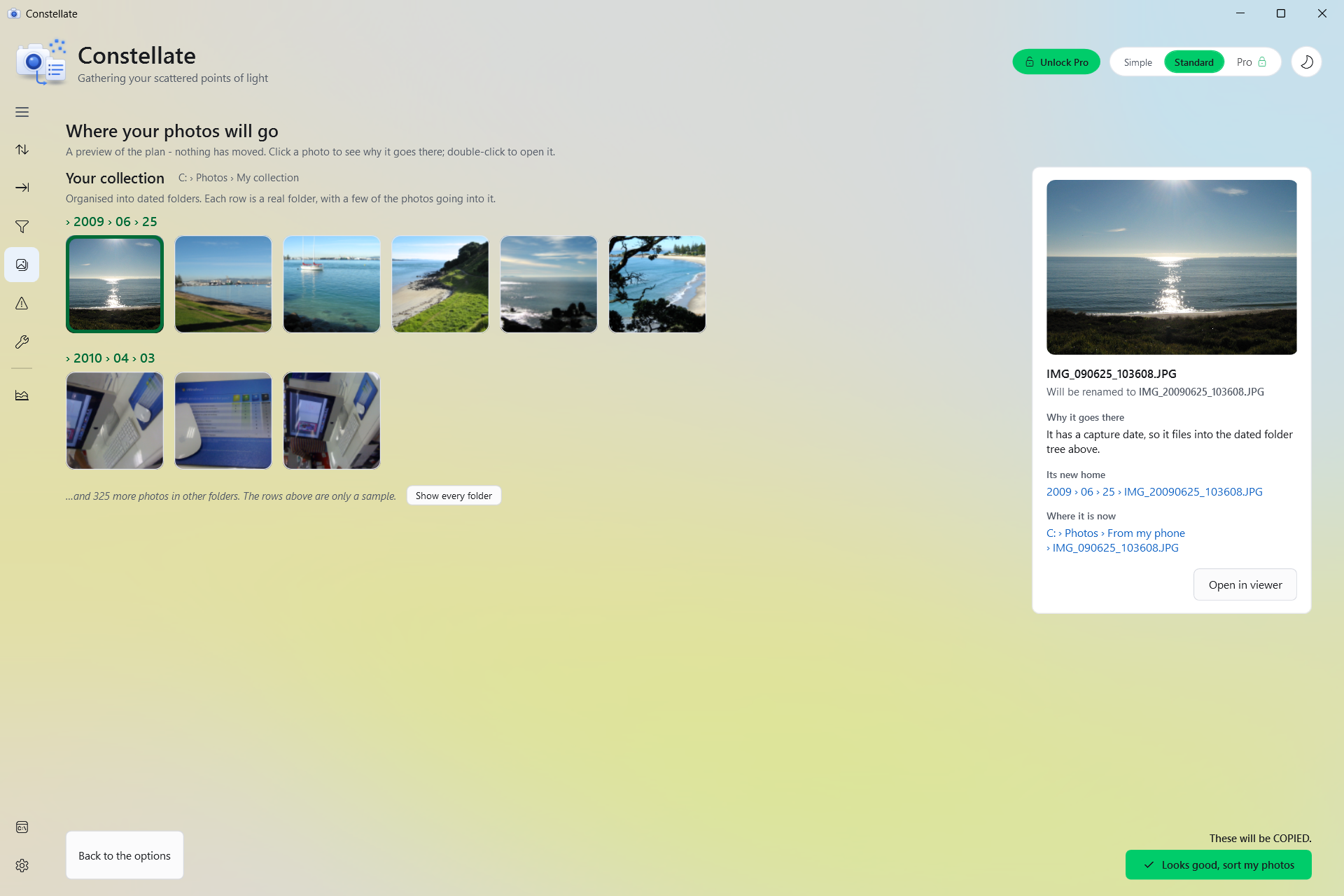
A preview of the plan. Nothing has moved. Each row is a real folder that would be made, with a few of the photos that would go into it as a sample. The plan itself is complete, and it is exactly what Sort will do. While the plan is being worked out the page says so; a big folder, or one in OneDrive or another cloud drive, can take a few minutes.
Click a photo to see why it goes where it goes, and its new name if it will be renamed. Double-click to open it.
Needs Review
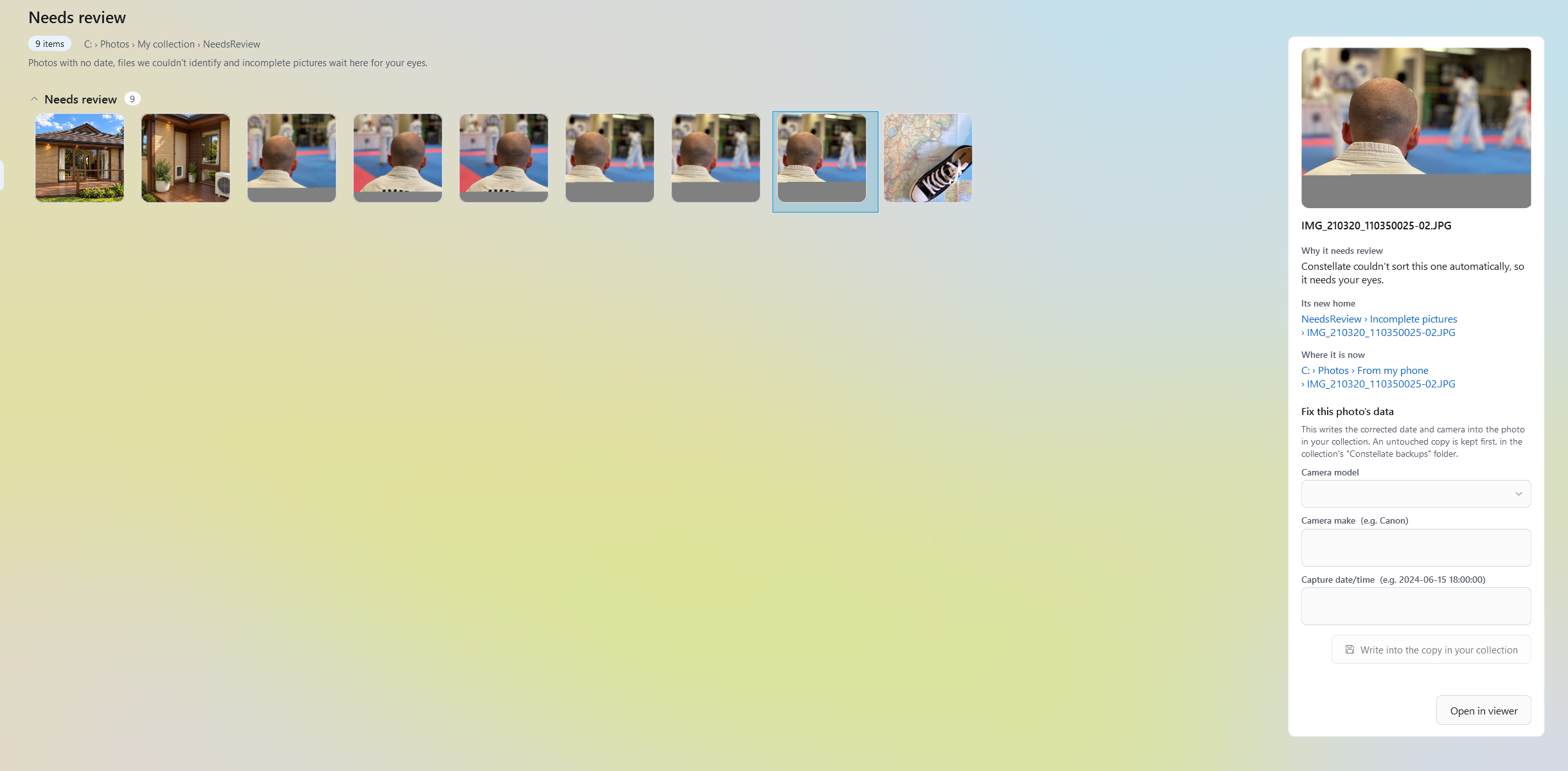
Photos that could not tell us when they were taken, files we could not identify, and incomplete pictures wait here for your eyes. Under SureSort it lists the photos it left in your folder under a heading that says so, with how many there are, and the line under the page title says how many spare copies were also left in your folder. Photos waiting in the review folder are grouped by why they are there, like No date and Incomplete picture. Select a photo to see why it needs review and where it is now. A photo whose only date is the year in its folder's name says so, like Its only date is its folder's year, from "Party 2015", the same words the preview uses.
Constellate will not believe a date of exactly 1 January 1970, 1980 or 1904, which a device with a flat clock stamps in, nor one before 1900, nor one more than two days in the future. A photo that only has a year to go on, from a folder name, waits in a folder for that year, because a year is not a date.
The review folder is called Please Check Me in Simple and Standard and NeedsReview in Pro.
In Pro you can fix a photo's date or camera here, in Fix this photo's data. That writes the corrected details into the copy in your collection, never your original, with an untouched copy kept in Constellate backups. Then sort again and the photo is filed. Videos have no photo date to fix here. A RAW file is only written into when Include RAW files is ticked under Metadata repair, with that page switched on; until then its panel says so and offers nothing to write.
Metadata Repair
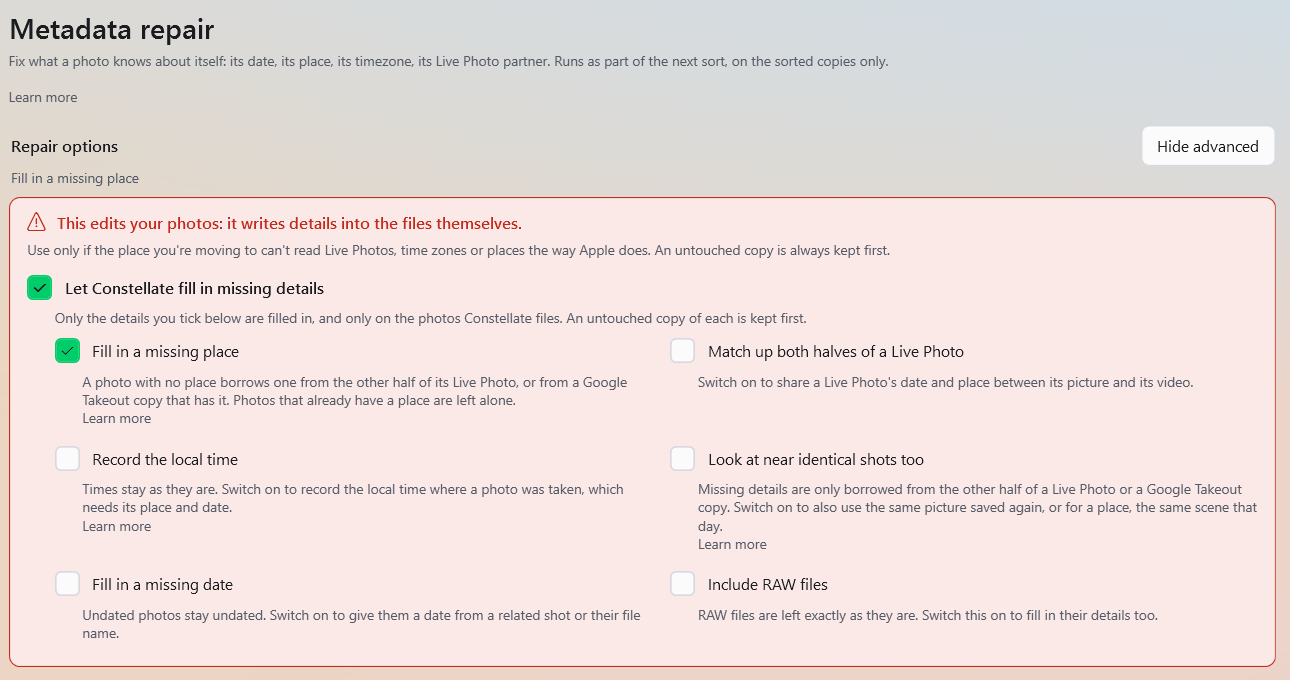
The page whose whole job is writing into your files. It is Pro, it sits behind Advanced mode, and it is off until you switch it on. An untouched copy of each photo goes into Constellate backups first. It runs as part of the next sort, on the sorted photos only, and only while its switch is on screen: Simple never runs it, whatever was left ticked. A photo that already has a detail keeps it.
Tick the jobs you want:
- Fill in a missing place. Borrows one from the photo's Live Photo partner or, for Google Takeout photos, from a copy that has it.
- Record the local time. Writes in the local time where the photo was taken. It needs both a place and a date. The time zone is worked out from the nearest place we know, so near a border it can be wrong.
- Fill in a missing date. Borrows one from a related shot or the file name. You will see fewer photos in Needs review next time.
- Match up both halves of a Live Photo. Copies a date or place across if only one half has it.
- Look at near identical shots too. Widens where the other jobs look, to the same picture saved again, or a photo of the same scene on the same day. On its own it fills in nothing, and it makes the run slower.
- Include RAW files. Off to begin with, so every RAW file is left exactly as it is, though it can still lend its date or place to the photo beside it. Tick it and RAW files are written into too, each with its untouched copy in Constellate backups.
Insights
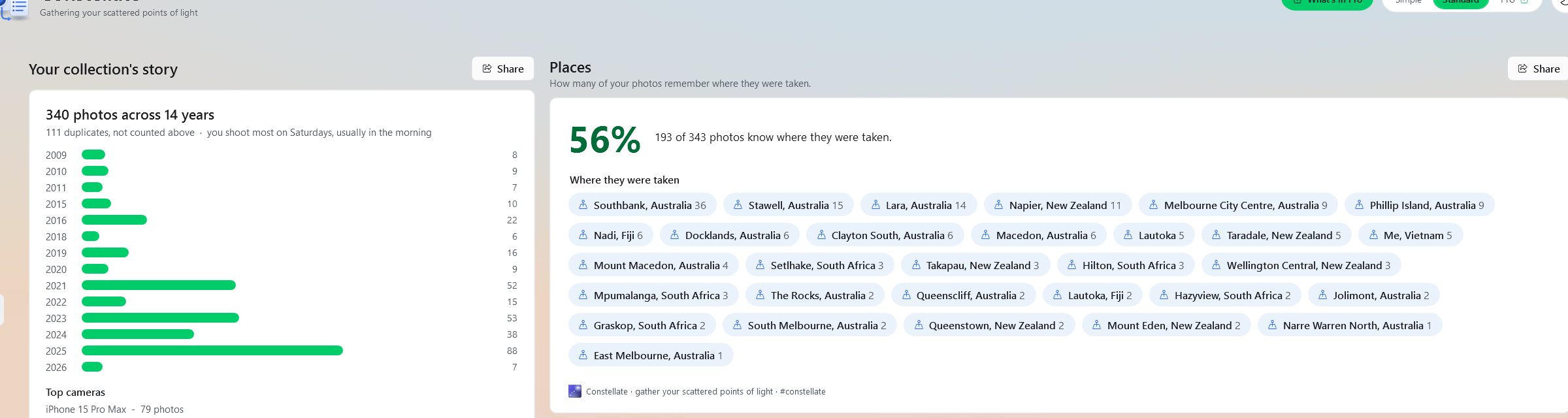
What your library looks like. Find your photos first, then this page fills in: your years, your top cameras, your busiest day, your first and latest photo, your biggest week, and how many of your photos remember where they were taken, with a list of the places.
Share saves a picture of a card into Pictures\Constellate, opens it, and puts the #constellate tag on your clipboard, ready to paste.
Settings
- Help
- A short tour, this user guide, what's new in this version, and Send us the logs.
- Appearance
- Follow Windows or pick light or dark. The sun and moon in the header is the quick switch.
- Start-up
- Which view Constellate opens in, or pick up where you left off.
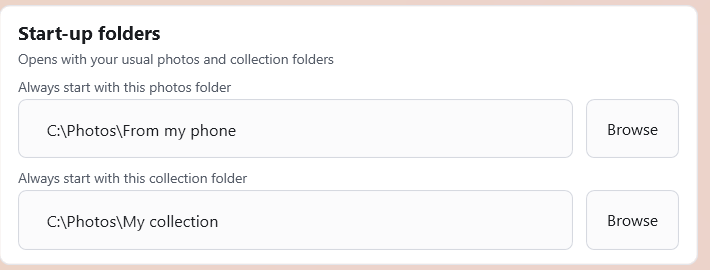
- Start-up folders
- Always start with a photos folder and a collection folder you choose.
- Home for your albums
- The home saved for the current collection. See Albums.
- Performance and Troubleshooting
- See Constellate Unleashed and If something goes wrong.
Simple's Settings page shows only Appearance and a "Something not working right?" card. Everything above is in Standard and Pro.
Constellate Unleashed
Constellate Unleashed (Pro) lets Constellate use much more of your computer's power. Big sorts finish sooner, and other things on your PC may feel slower while it runs. It changes speed only. It never changes what gets sorted or where it goes.
On most laptops, unplugging switches it off to protect your battery, and plugging back in turns it on again. The sort keeps running either way. Turn it on or off on the Settings page, under Performance. Simple does not have it.
Separately, any sort that runs on mains power asks Windows not to go to sleep until it finishes, whether or not Unleashed is on. Your screen can still switch off. On battery it does not hold your laptop awake.
The Bottom Buttons
- Preview the plan
- Shows exactly where every photo would go. Nothing moves. Worth doing once on a big library. Alt+P.
- Sort
- Does it, copying or moving as the switch says. Alt+S. If you stop a sort part way, what is already filed stays filed. Constellate tells you how far it got and lets you keep what was filed or put it back.
- While it runs, the page says the plan in one sentence, like Copying 3,621 photos into C:\Pictures\Sorted: folders by Year \ Month \ Day; named IMG_YYYYMMDD_HHMMSS., and under it the folders the plan fills appear one by one, with how many photos go in each.
- When it finishes, the card leads with how many photos were sorted. After a Copy it says Copied, not moved, and after a Move how many were moved. Under that it says how many were held back and why, and that it checked every photo it placed arrived.
- Undo last sort
- Puts the last run back. Alt+U. After a Copy it removes the copies that sort made and never touches your originals. After a Move it puts your photos back where they came from. Press it again and it takes back the sort before that, one at a time, newest first. It works for a full three months, and it is never behind the paywall, because undoing damage we caused is safety, not a feature.
Undo only takes back what Constellate did. A folder you made yourself stays, even if it is empty. A photo that Constellate edited after the sort goes back as the untouched original. If Undo cannot take a photo out of your collection, it tells you how many are still there.

Free and Pro
The full sort is free. Finding your photos, filing them by date, keeping Live Photo pairs together, setting duplicates aside, fixing extensions, the preview, and Undo are all free.
Pro is the freedom to change it. Free gives you one good fixed arrangement on each axis people ask for. Pro lets you rearrange: a different depth, a different order, or a layout and naming scheme you invent. Pro also carries the heavier work: filtering by format, place and date (cameras are free), metadata repair, numbering photos in order, orphaned Live Photo handling, identifier repair, and Constellate Unleashed. Pro is one payment, with no subscription.
Anything with a padlock is something Pro adds, so you can see what is there before you decide. If Constellate cannot reach the Microsoft Store to check, a copy the Store has already confirmed on this computer stays Pro. One it has never confirmed runs as the free version for now, and your photos and settings are untouched.
Troubleshooting
Settings has a Troubleshooting card (in Standard and Pro) that shows where the log lives and has an Open logs button. Switch on Write down everything, not just the headlines if we ask for a detailed log. It names every photo and what happened to it, so the file gets large and runs are a little slower.
Send us the logs is on the Settings page, and in Simple it is in the cog menu. For the steps, with pictures, see How to Send Us the Logs.
If Constellate stops part way, because of a crash, a Windows update or a power cut, nothing is lost. The next time you open it, it tells you where it stopped and what is left, and asks whether to carry on or undo the half job. If your settings file is damaged, Constellate keeps the old file, tells you where, and starts with the defaults.
How to Send Us the Logs
Thank you for doing this. Sending the logs is the best help you can give us, and it helps make Constellate better. It takes about a minute, and nothing leaves your computer until you press Send in your own email.
In Standard and Pro
-
Open Settings, find the Help card, and press Send us the logs.
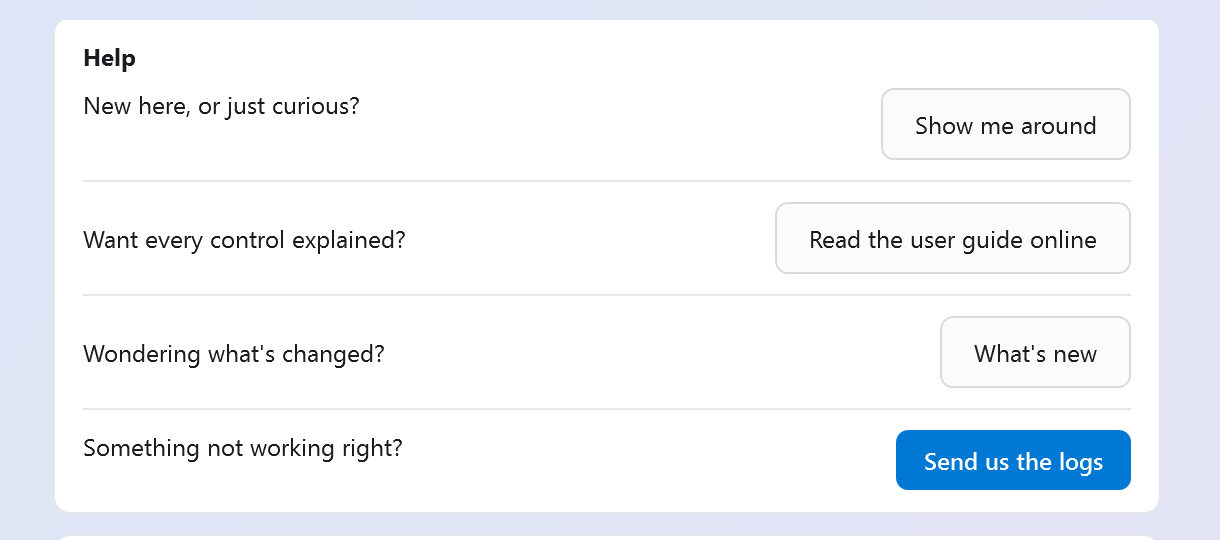
The Help card on the Settings page. -
A window opens at once, and Constellate packs your logs into one small file while you read it.
The window shows three things: Send it to (our address), Suggested subject
(Constellate log report, then your build number) and Attach this file (where the
file is). Until the file is ready, the last box says it is packing.
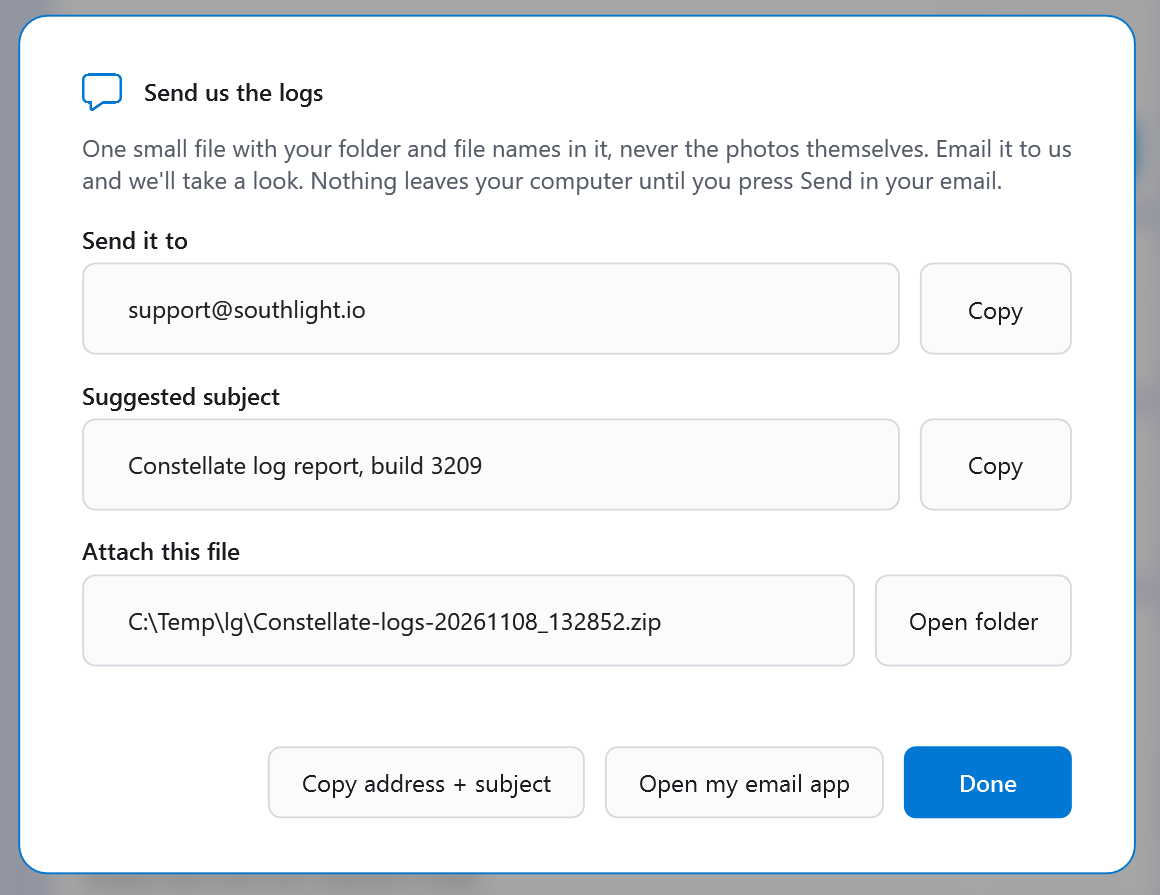
The Send us the logs window, with the file ready to attach. - Attach the file in your own email. Open folder shows the file in File Explorer, ready to drag or attach. Copy copies the address or the subject, and Copy address + subject copies both. Open my email app opens a new email to us with the subject filled in, if your PC has an email app; you still attach the file yourself. If it has none, Constellate says so, and you can write from any email, webmail included.
- Tell us what went wrong and press Send in your email. Then press Done in Constellate.
In Simple
-
Press the cog at the top right and choose Something not working right?
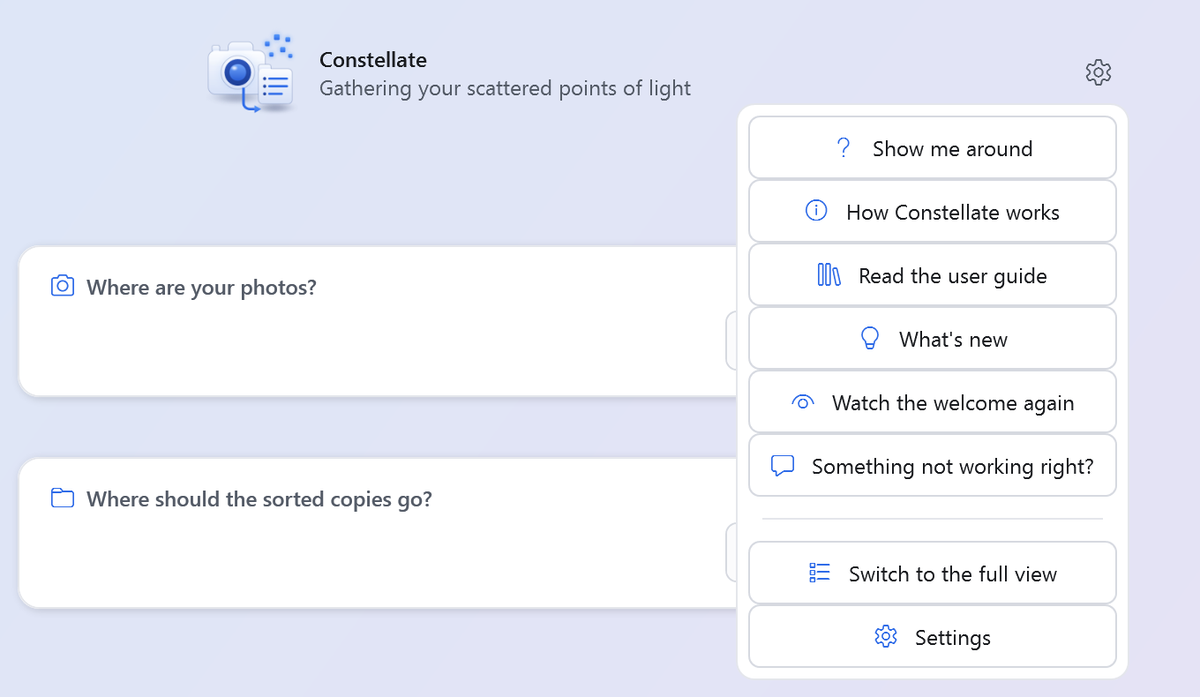
The cog menu in Simple. -
Constellate asks if you are ready, and lists the three steps. Press Let's go (in earlier
versions, OK). If you press Not now (or Cancel), nothing else happens.
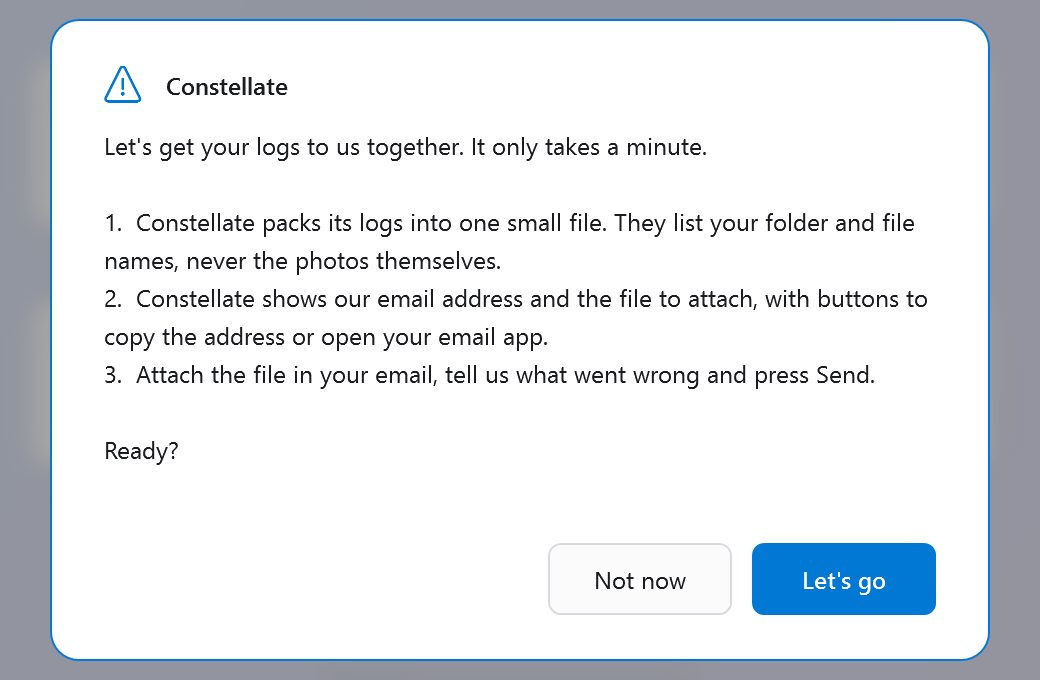
The question Simple asks first. - The Send us the logs window opens, the same one as in the second step above. Carry on from step 3 there.
The file lists the names of your folders and files, and never your photos. Our address is . There is no account, no telemetry and no server. See the privacy policy.
Unreadable Files
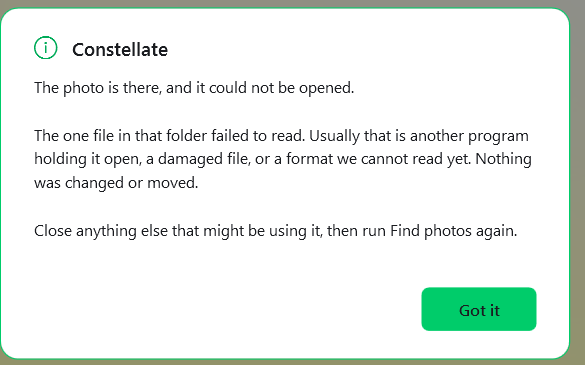
When Find photos finds some photos but cannot read others, or cannot open a folder, the What we found card says so in a line of its own, like "1 photo couldn't be read, so it isn't counted. 1 folder couldn't be opened, so its photos weren't looked at." When it finds nothing at all, a notice explains why instead.
The usual reasons a file cannot be read: another program has it open, the file is damaged, or it is a format Constellate cannot open yet. Close anything else that might be using it and run Find photos again. Unreadable files are never moved or changed.
Find also says when it leaves things out: online-only photos (see below), shortcuts to other folders, which it does not follow, and photos inside an iCloud Photos library.
Folder Access
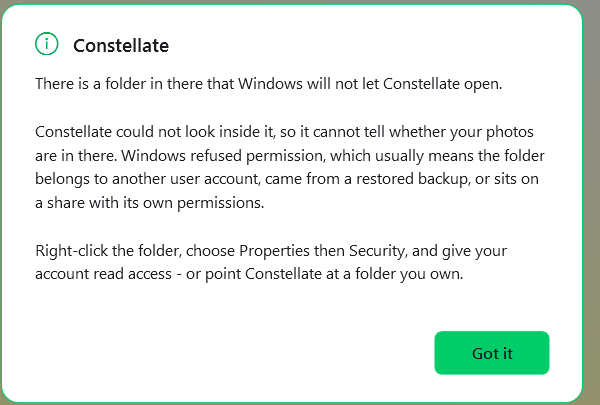
Sometimes Windows refuses to let Constellate open a folder. That usually means the folder belongs to another user account, came from a restored backup, or sits on a share with its own permissions. Constellate cannot look inside it, so any photos in there are left out of the run altogether.
To fix it, right-click the folder, choose Properties, then Security, and give your account read access. Or point Constellate at a folder you own.
Online-Only Photos
Photos that live only in OneDrive or iCloud, not on this computer, are counted but never read or downloaded behind your back. To include them, open File Explorer, right-click the folder and choose Always keep on this device, wait for it to finish, then run Find photos again.
Dates Before 1980
Some drives, the ones formatted as exFAT, cannot store a file date before 1980, so Windows shows today's date against an old photo in a folder listing. If your photos include any taken before 1980 and your collection is on such a drive, Constellate asks before it sorts.
The date inside the photo is not touched, and that is the date Constellate sorts by, so the photo still lands in the right year. Only a photo with no date of its own loses something, because for that one the file's date was all there was. For this sort Constellate copies rather than moves, so your originals keep their real dates. Sorting onto a different drive avoids the whole thing.
The Old Sorter
If your library was sorted by the old PowerShell sorter, Constellate notices on a Find and makes one offer: put everything back the way it was before, or carry on. Once the old sorter's folder is cleaned up, its history stays in the undo record for the usual 90 days.
Putting things back is checked file by file. A file only goes back if it is still exactly the one the old sorter placed. Anything that changed since is left alone and named in the log. The clean-up afterwards removes only the old sorter's own leftover files, never your photos.
Something here wrong, or a control we have not explained? Tell us and we will fix the page.
If you want to take this offline for a quick reference, then download it here.